Our LabyMod Launcher has the ability to manage all of your mods and addons.
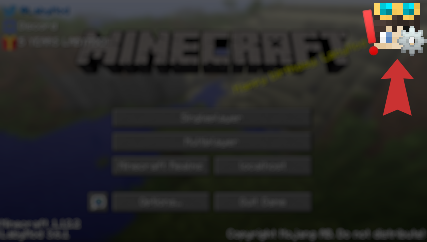
To access this feature, click on the puzzle icon in the top right corner of the Launcher.

You can create a new modpack by clicking the button in the bottom left corner and name it the way you want. On the right hand side, you can see a Minecraft version selection which also shows which Minecraft versions support which modloader. Click on the desired version and select the modloader (Fabric/Forge).

Once you've created the modpack, navigate to either the Fabric or Forge Mods tab depending on which modloader and Minecraft version you want to play on. You can also add LabyMod addons to your modpack through its own tab.
 You'll find every mod which is listed on Modrinth. If you find a mod you want to use, click on it and select to which Modpack you want to add it to. You'll find a complete list with every modpack in it categorized whether it is compatible with the modpack or not. To really add it, confirm it by clicking on the "Add to Modpack" button.

Now after adding all mods, the only thing left to do is starting the modpack. To do that, open the version selection and the version you selected previously. You'll find a list with all of your modpacks in the bottom right corner. Select your modpack you've created earlier and launch LabyMod.

In the "Manage Modpack" tab, you can find every mod you've added to the selected modpack.
The color on the right hand side mean on what modloader they base on (Gray -> Mod, Blue -> LabyMod Addon).
By selecting a mod and clicking on "Remove from Modpack", you can, well, remove it from the modpack.

To add mods not listed on Modrinth, you can manually add the mod file to the mod folder. You can find the mod folder by clicking on "Open Fabric (or Forge) Directory" in the Modpack manager.

Please keep in mind that a lot of mods that are modifying the same area of the game are incompatible with LabyMod. Do not report those issues to our staff as in most cases it's not possible to fix these issues on our end. Also make sure to install the mods for the right Minecraft version.